Back to School Event Flyer Canva Template: How to Edit, Customize, and Use It for Your Event
Back to school season is one of the busiest times of the year for educators, parents, small business owners, and community organizers. Whether you are launching a supply drive, hosting an open house, promoting a tutoring service, or organizing a parent-teacher meet-and-greet, getting the word out quickly and clearly matters. A Back to School Event Flyer Canva Template offers a practical starting point that saves design time while keeping your messaging consistent and professional. This article walks through what this template is, how you can integrate it into your planning workflow, and how to get the most out of it before, during, and after your event.
What This Template Is and Where It Fits in Your Workflow
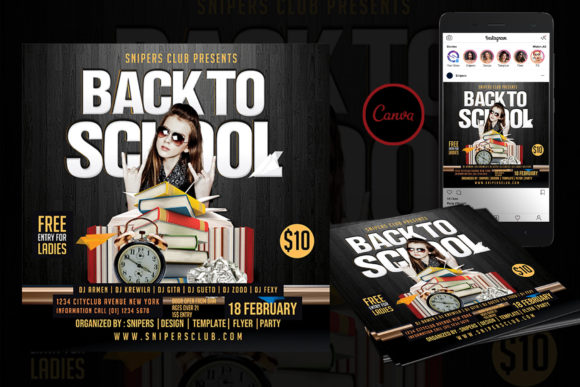
This is a digital, editable Canva template sized at 4x4 inches, suitable for both print and social media use. The product you purchase includes one PDF file containing a link to edit the template directly in Canva. After clicking the link, you can make changes to text, colors, object placement, and images using any device—phone, tablet, or computer. Once your edits are complete, you export the final design from Canva as PNG, JPG, or PDF.
Importantly, the template does not include photo models. You supply your own images or choose from Canva’s library. To edit, you need either an existing Canva account or a free account you can create in a few minutes.
This template fits into the early planning and promotion phase of any back-to-school initiative. Whether you’re a teacher organizing a classroom meet-and-greet, a principal announcing a supply drive, a small business promoting a back-to-school sale, or a PTA volunteer recruiting families for a fundraiser, the flyer becomes your primary communication tool. It sits between the moment you define your event goals and the moment you distribute your message across email, social media, or physical bulletin boards.
Why a 4x4 Inch Format Works for Multiple Channels
The 4x4 inch size is a versatile choice. Square formats perform well on Instagram and Facebook, where they occupy consistent space in feeds without cropping issues. For print, the size is easy to pin on bulletin boards, hand out at events, or include in welcome packets. You do not need to create separate versions for digital and physical distribution—one template serves both purposes.
This convenience reduces duplicate work. Instead of designing a square social media graphic and then resizing it for print, you can design once and export in multiple formats from Canva. This consistency ensures your branding, fonts, and event details remain identical across every channel.
Before the Event: Planning and Preparation
The real value of this template emerges before your event begins. Use it as a planning canvas to clarify your event details. Open the template in Canva and start by filling in the placeholder text with your specific information: event name, date, time, location, RSVP instructions, and contact details. As you type, you will naturally check whether your messaging is complete. If you find missing pieces—like a start time that hasn’t been finalized or a venue that hasn’t been confirmed—you address those gaps early.
The template also forces a visual hierarchy. Because the 4x4 space is compact, you must prioritize information. What is the most important thing a parent or student needs to know? Place that front and center. Secondary details like parking information or what to bring can go in smaller text or at the bottom. This discipline helps you communicate clearly before anyone even sees the flyer.
If you are working with a team—teachers, volunteers, or marketing staff—the template becomes a shared reference point. Share the editable Canva link with colleagues. They can leave comments, suggest edits, or adjust text themselves. No need to email PDF drafts back and forth. Everyone works from the same file, and version control is handled inside Canva.
During the Event: Real-Time Use and Last-Minute Changes
One overlooked advantage of an editable digital template is how it supports last-minute updates. Events often shift—room assignments change, start times get pushed, or new sponsorship logos need to be added. Because you can edit the template on your phone or tablet, you can make updates on the go. If a speaker cancels and a replacement is confirmed the day before, open Canva, swap the text, download a new PNG, and post the updated flyer to your social channels in minutes.
For printed materials, this agility might seem less relevant since physical flyers are usually printed ahead of time. But you can still use the template during the event itself. Project the flyer on a screen at the entrance to remind attendees of the schedule. Or take a screenshot of the flyer and share it in a parent WhatsApp group or school app during check-in. The template becomes a live asset, not a static piece of paper.
If your event includes multiple sessions or stages, you can create several variations of the same template. Duplicate the design in Canva, change the session name and time for each version, and export them as a set. This keeps visual consistency while making each flyer context-specific.
After the Event: Repurposing and Long-Term Use
Once your event is over, the template still holds value. You can repurpose it for your next gathering. Open the original file, replace the event details, adjust the colors or photos, and you have a fresh flyer for a different occasion—parent-teacher conferences, sports tryouts, or after-school programs. The template becomes a repeatable system, not a one-off design.
You can also use the template for retrospective communication. Modify the flyer to say “Thank You for Attending” and include a recap of what happened or a link to a photo gallery. Send this as a follow-up email or post it on social media. This extends the lifecycle of your event communication and keeps your audience engaged for next time.
For organizations that host multiple events each school year, saving the Canva template as a branded master file is a smart move. Every new flyer starts from a consistent base, so your visual identity remains stable across seasons. This is especially useful for schools, PTAs, tutoring centers, and small businesses that want to build recognition without hiring a designer each time.
How to Integrate the Template with Other Tools and Platforms
The template does not exist in isolation. It interacts with several other resources and platforms you probably already use. Here are some practical integrations:
- Email marketing platforms: Export your flyer as a PNG and insert it into newsletters sent via Mailchimp, Constant Contact, or school communication tools. The square format works well inside email templates without breaking layout.
- Social media schedulers: Upload the exported JPG or PNG to tools like Buffer, Hootsuite, or Meta Business Suite. Because the size is native to Instagram and Facebook, it will display correctly without cropping.
- Print services: Export as PDF and upload directly to a local print shop or online service like Canva Print, Vistaprint, or Office Depot. The 4x4 size is small enough to print multiple flyers per sheet, reducing paper waste and cost.
- School apps and parent portals: Platforms like ClassDojo, Remind, and ParentSquare support image uploads. Post the flyer directly to your class or group stream.
- Collaboration tools: If you work with a team inside Google Drive, Microsoft Teams, or Slack, share the Canva edit link rather than a static file. Colleagues can preview and suggest changes without leaving their workspace.
This kind of interoperability makes the template more than a simple design asset. It becomes a connective piece in your communication workflow, linking planning, creation, distribution, and follow-up.
For Educators and School Administrators
Start the template early in the summer or at the beginning of the school year. Use it to communicate open houses, curriculum nights, and volunteer opportunities. Keep a folder of past flyers in Canva so you can reuse layout elements like school logos, colors, and fonts from year to year. If your school has a branded color palette and approved fonts, set those as defaults in Canva to stay consistent across all teacher communications.
For Small Business Owners and Marketers
Create a series of flyers for different customer segments. For example, a tutoring center might design one flyer for elementary math support, another for high school test prep, and a third for adult education classes. Each flyer uses the same template but swaps out images and copy. This speeds up production while keeping your brand recognizable. Track which flyer drives the most engagement by using custom links or QR codes inside the design.
For PTA and Volunteer Organizers
Many parent volunteers are not trained designers. The template lowers the barrier. If someone new takes over communications next year, they can open the same file, update the text, and maintain continuity. Provide a brief style guide alongside the template link—list your school colors, preferred fonts, and a note about keeping text readable at small sizes.
For Freelancers and Content Creators
If you create resources for schools or family audiences, use this template as a delivery format for clients. After you design a flyer for a client, hand them the Canva template so they can make future edits themselves. This adds value to your service and reduces revision requests for small changes.
Preparation, Compatibility, and Long-Term Maintenance
Before you start editing, take a few minutes to set up your workspace. Create a free Canva account if you do not have one. Open the template link and review all elements: which text fields are editable, whether any images need to be replaced, and how the colors align with your branding. If your organization uses specific fonts that are not in the template, swap them early to avoid redoing work later.
For long-term use, organize your Canva projects into folders. Save this template with a clear name like “Back to School Flyer Master” so you can find it quickly when you need to create the next version. If you make significant changes—like updating a logo or changing a primary color—save a copy as a new template rather than overwriting the original. This preserves a clean starting point for future events.
Quality control does not end at export. Before printing or posting, check the flyer on a real device. Text that looks fine on a desktop monitor might be too small on a phone screen or too crowded when printed at 4x4 inches. Canva’s preview feature helps, but nothing replaces a quick test. If you are printing, ask your print shop for a proof or print a single copy first.
Observations on Efficiency and Consistency
The biggest time savings from using this template come from avoiding repetitive layout work. Instead of starting from a blank canvas every time you need a flyer, you begin with a structure that already works. You spend your energy on content, branding, and message clarity rather than on alignment, margins, and color picking.
Consistency matters because your audience builds trust when they see familiar visual patterns. A parent who recognizes your flyer layout from last month’s event is more likely to read the new one. This recognition is especially valuable in busy school environments where families receive dozens of notices per week. A consistent flyer treatment signals professionalism and reliability.
Finally, because this template is editable after download, you retain full control. You are not locked into a fixed design. You can move objects, resize text boxes, change fonts, and adjust the layout to suit each unique event. The template provides a foundation, but the final result is yours.
Whether you are planning a single classroom gathering or a district-wide event, the Back to School Event Flyer Canva Template offers a straightforward, adaptable tool for your communication workflow. Edit it on your phone in line at the coffee shop, collaborate with a committee online, and export clean files for print and social media. It fits into the way you already work, and it stays useful long after the first event is over.